 Clip
- General Overview
- Step-By-Step
- Tips and Tricks
- Related Tools
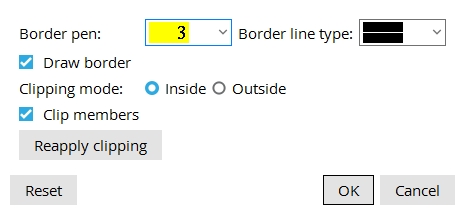
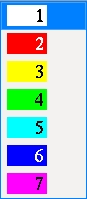
Border pen: The border pen color sets the color and line thickness of the border's perimeter.
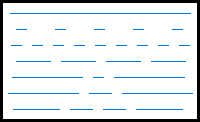
Border line type: The line type for the added boarder.
These line styles are equivalent to the dash patterns that you can select to be the Line type of the border.
Draw border:  or
 .
If this box is checked, a rectangular border line is drawn around the boundary of the clip area.
Clipping mode: Inside or Outside.
Inside: Masks and hides all drawing objects located inside the rectangular boundary.
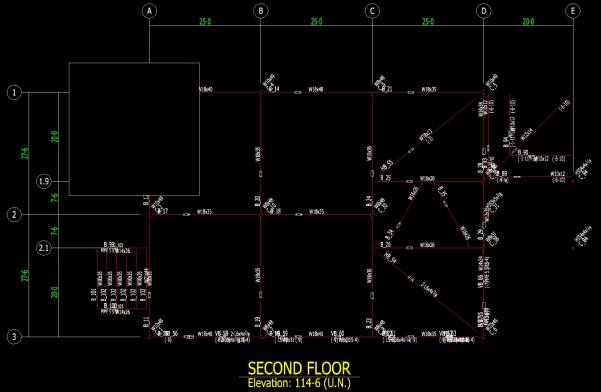
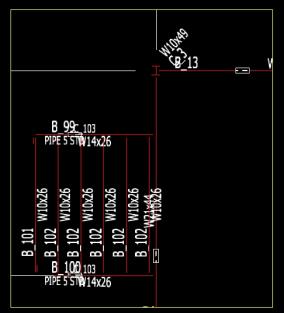
Clip members: or . If this box is checked, member stick lines and member labels located within the clipping boundary are hidden on Erection Views.
Reapply clipping: Re-evaluates drawing objects on all visible layers against the active clip boundary.
Note: If you add new geometry, annotations, or synchronize an erection view to introduce new polygons, click Reapply clipping to apply the mask to the newly added entities.
Reset: Undoes all changes made in Clip Edit window since it was opened. This window remains open.
OK: (or the Enter key) closes this window and applies the settings on it to the Clip.
Defaults: Even if you did not make any changes on this window, pressing OK causes many of the settings on this window to be applied as the defaults for the next clip that is added in your current session of Drawing Editor.
Cancel: (or the Esc key) closes this window without saving any changes.
1. Click the Clip icon, which is pictured above. The icon can be found on the Draftring page > Tools section.
Alternative: Invoke Clip using the Find Tool by searching the command name and clicking the icon.
Learn more about alternative methods for launching commands.
2. Locate - Pan - Return mouse bindings become active along with various Locate options. Left-click and hold (Locate) and drag the mouse pointer to frame the rectangular region, then release the mouse button.
3. Inside - Cancel - Outside mouse bindings become active. Left-click to clip inside the boundary or right-click to clip outside of the boundary.
4. Yes - No mouse bindings become active. Left-click to draw the border or right-click to not include the border.


